This is based on the frameworks developed by
Sonar Systems.
Download the SonarCocosHelper files from:
https://github.com/SonarSystems/Sonar-Cocos-Helper
You can follow the
youtube instructions therein.
After downloading the zip file, unzip it and you get three main folders within Sonar-Cocos-Helper:
1. SonarCocosHelper
2. External Cocos Helper Android Frameworks
3. External Cocos Helper iOS Frameworks
Within the External Cocos Helper iOS Frameworks, unzip the GoogleMobileAdsSdkiOS-7.1.0.zip file to get the GoogleMobileAds.framework file.
Then, copy and paste it into the proj.ios_mac/ios folder:
Then, drag the GoogleMobileAds.framework from the above folder and drop it into the corresponding iOS folder in Xcode:
In above, be sure to select CreateGroups and nothing else. Having completed this step, it should look like this:
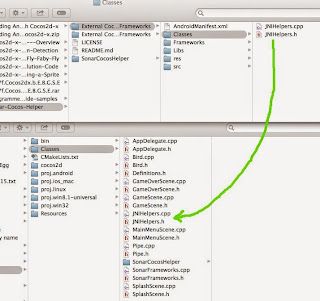
Then copy the SonarCocosHelper folder into the Classes folder of your cocos project:
Then, drag and drop SonarCocosHelper folder from the Classes folder above to your Xcode Classes folder:
Note that you only select CreateGroups. No need to Copy files if needed because you already copied it into the Classes folder. Also no need to create folder references.
You should now get:
Note that the SonarCocosHelper folder is brown instead of blue, and, the SonarCocosHelper folder is within the Classes folder.
Then, open the SCHSettings.h and edit the admob fields as follows:
/*
Copyright (C) 2015 Sonar Systems - All Rights Reserved
You may use, distribute and modify this code under the
terms of the MIT license
Any external frameworks used have their own licenses and
should be followed as such.
*/
//
// SCHSettings.h
// Sonar Cocos Helper
//
// Created by Sonar Systems on 03/03/2015.
//
//
#ifndef __SCHSettings_h__
#define __SCHSettings_h__
#define SCH_IS_iADS_ENABLED false // iAd.framework
#define SCH_IS_AD_MOB_ENABLED true // AdSupport.framework, AudioToolbox.framework, AVFoundation.framework, CoreGraphics.framework, CoreMedia.framework, CoreTelephony.framework, EventKit.framework, EventKitUI.framework, MessageUI.framework, StoreKit.framework, SystemConfiguration.framework
#define SCH_IS_CHARTBOOST_ENABLED false // StoreKit.framework, Foundation.framework, CoreGraphics.framework, UIKit.framework
#define SCH_IS_REVMOB_ENABLED false // SystemConfiguration.framework, StoreKit.framework, MediaPlayer.framework, AdSupport.framework
#define SCH_IS_SOCIAL_ENABLED false // Social.framework
#define SCH_IS_GAME_CENTER_ENABLED false // Social.framework, GameKit.framework
//#define SCH_IS_EVERYPLAY_ENABLED false // AdSupport (iOS 6+, set to Optional link for pre-iOS 6 compatibility).framework, AssetsLibrary.framework, AudioToolbox.framework, AVFoundation.framework, CoreGraphics.framework, CoreImage (iOS 5+, set to Optional link for pre-iOS 5 compatibility).framework, CoreMedia.framework, CoreVideo.framework, Foundation.framework, MessageUI.framework, MobileCoreServices.framework, OpenGLES.framework, QuartzCore.framework, Security.framework, Social (iOS 6+, set to Optional link for pre-iOS 6 compatibility).framework, StoreKit.framework, SystemConfiguration.framework, Twitter (iOS 5+, set to Optional link for pre-iOS 5 compatibility).framework, UIKit.framework
#define SCH_IS_MOPUB_ENABLED false // AdSupport.framework,CoreGraphics.framework,CoreLocation.framework,CoreTelephony.framework,EventKit.framework,EventKitUI.framework,Foundation.framework,MediaPlayer.framework,QuartzCore.framework,StoreKit.framework†,SystemConfiguration.framework,UIKit.framework
#define SCH_MOPUB_BANNER_AD_UNIT @""
#define SCH_MOPUB_LAUNCH_INTERSTITIAL_AD_UNIT @""
#define SCH_MOPUB_ENDLEVEL_INTERSTITIAL_AD_UNIT @""
#define SCH_CHARTBOOST_APP_ID @""
#define SCH_CHARTBOOST_APP_SIGNATURE @""
#define SCH_REVMOB_MEDIA_ID @""
#define SCH_AD_MOB_BANNER_AD_UNIT_ID @"ca-app-pub-xxxxxxxxxxxxxxxx/xxxxxxxxxx"
#define SCH_AD_MOB_FULLSCREEN_AD_UNIT_ID @"ca-app-pub-xxxxxxxxxxxxxxxx/xxxxxxxxxx"
#define SCH_AD_MOB_TEST_DEVICE @""
//#define SCH_EVERYPLAY_CLIENT_ID @""
//#define SCH_EVERYPLAY_CLIENT_SECRET @""
#endif
Take note of these lines:
#define SCH_IS_AD_MOB_ENABLED true
#define SCH_AD_MOB_BANNER_AD_UNIT_ID @"ca-app-pub-xxxxxxxxxxxxxxxx/xxxxxxxxxx"
#define SCH_AD_MOB_FULLSCREEN_AD_UNIT_ID @"ca-app-pub-xxxxxxxxxxxxxxxx/xxxxxxxxxx"
Note that the SCH_AD_MOB_ENABLED is set to true. Make sure all the others are set to false. At time of writing MoPub is set to true by default - be sure to set it to false. Also, fill in the Admob banner and Fullscreen ad units. Fullscreen ad unit is also known as Interstitial ad in Admob terms. The location of the SCHSettings.h file is shown below:
Then, add these frameworks to Xcode:
// AdSupport.framework, AudioToolbox.framework, AVFoundation.framework, CoreGraphics.framework, CoreMedia.framework, CoreTelephony.framework, EventKit.framework, EventKitUI.framework, MessageUI.framework, StoreKit.framework, SystemConfiguration.framework
Alternatively, instead of adding the above frameworks one-by-one by hand, you can do it automatically by enabling modules:
Once you enable modules, Xcode will automatically add the necessary frameworks needed by Admob.
Then, to show ads, call the functions in the file SonarFrameworks.cpp. But before we can do that,
we need to init Admob before calling the show ads. This is best done in the GameScene. Don't put it in Splash or Menu scene because they are not always being accessed. GameScene is always accessed.
Open your GameScreen.cpp file and add:
#include "SonarFrameworks.h"
And in the init method, do this:
SonarCocosHelper::IOS::Setup();
Now, you can show ads in any scene you like, for example, I show ads in my GameOverScene.
In your GameOverScene.cpp, add the following include:
#include "SonarFrameworks.h"
Then, to show banner and interstitial, put this in the init method of GameOverScene.cpp:
//--- Admob ---
//SonarCocosHelper::AdMob::hideBannerAd();
//SonarCocosHelper::AdMob::showBannerAd();
//Default is top banner, if no param specified
SonarCocosHelper::AdMob::showBannerAd(SonarCocosHelper::AdBannerPosition::eBottom);
this->scheduleOnce(schedule_selector(GameOverScene::showAdmobInterstitial), 3);
Here is the implementation for showAdmobInterstitial:
void GameOverScene::showAdmobInterstitial(float dt){
SonarCocosHelper::AdMob::showFullscreenAd();
}
And the corresponding .h file:
class GameOverScene : public cocos2d::Layer
{
public:
static cocos2d::Scene* createScene(unsigned int tempScore);
virtual bool init();
CREATE_FUNC(GameOverScene);
private:
//--- Admob ---
void showAdmobInterstitial(float dt);
};
When run, the iOS simulator will show Admob banner and interstitial Test ads.